In this article
- Canon PIXMA G2010 Driver Download
- Official Canon PIXMA G2010 Driver
- How to Install Canon PIXMA G2010 Driver
- Canon PIXMA G2010 Printer Setup
- Canon PIXMA G2010 Driver Not Working?
- Printer Not Detected
- Driver Installation Failed
- Frequently Asked Questions
- Where can I download the Canon PIXMA G2010 driver?
- Is the Canon PIXMA G2010 driver free?
- Why is my Canon G2010 not detected?
- Can I use Canon PIXMA G2010 after reinstalling Windows?
- Conclusion
- Need Printer Installation or IT Support?
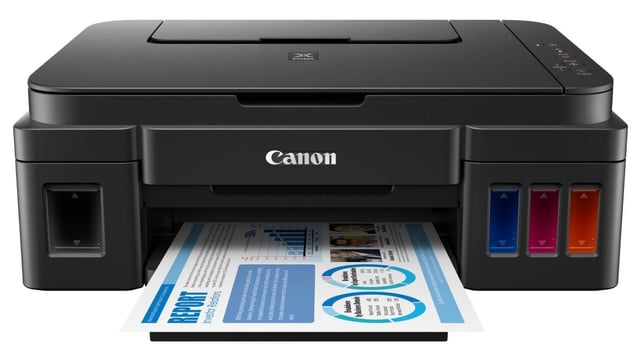
Need to install the Canon PIXMA G2010 printer driver on your Windows PC? This guide explains how to download and install the Canon PIXMA G2010 driver, connect the printer to your computer, and troubleshoot common driver and printing problems.
Canon PIXMA G2010 Driver Download
The Canon PIXMA G2010 requires the appropriate printer driver to communicate correctly with your Windows computer.
Official Canon PIXMA G2010 Driver
For the safest installation, download the latest available driver from Canon's official support resources.
👉 Download Canon PIXMA G2010 Driver from Canon
Canon's official documentation states that its MP Drivers include the printer driver and ScanGear scanner driver.
Important: Make sure you select PIXMA G2010 and the correct operating system before downloading the driver. Do not install a driver intended for a different PIXMA model.
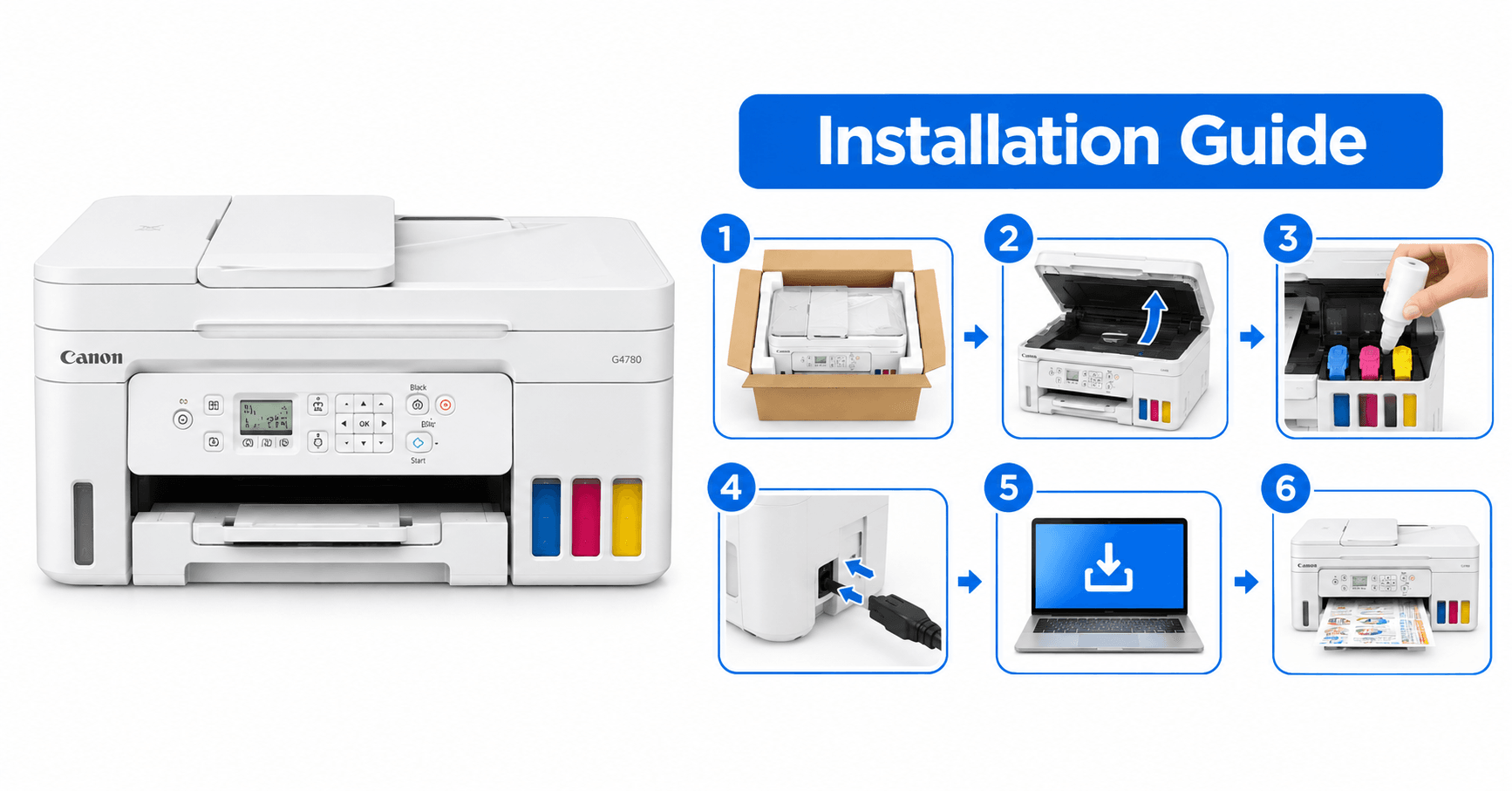
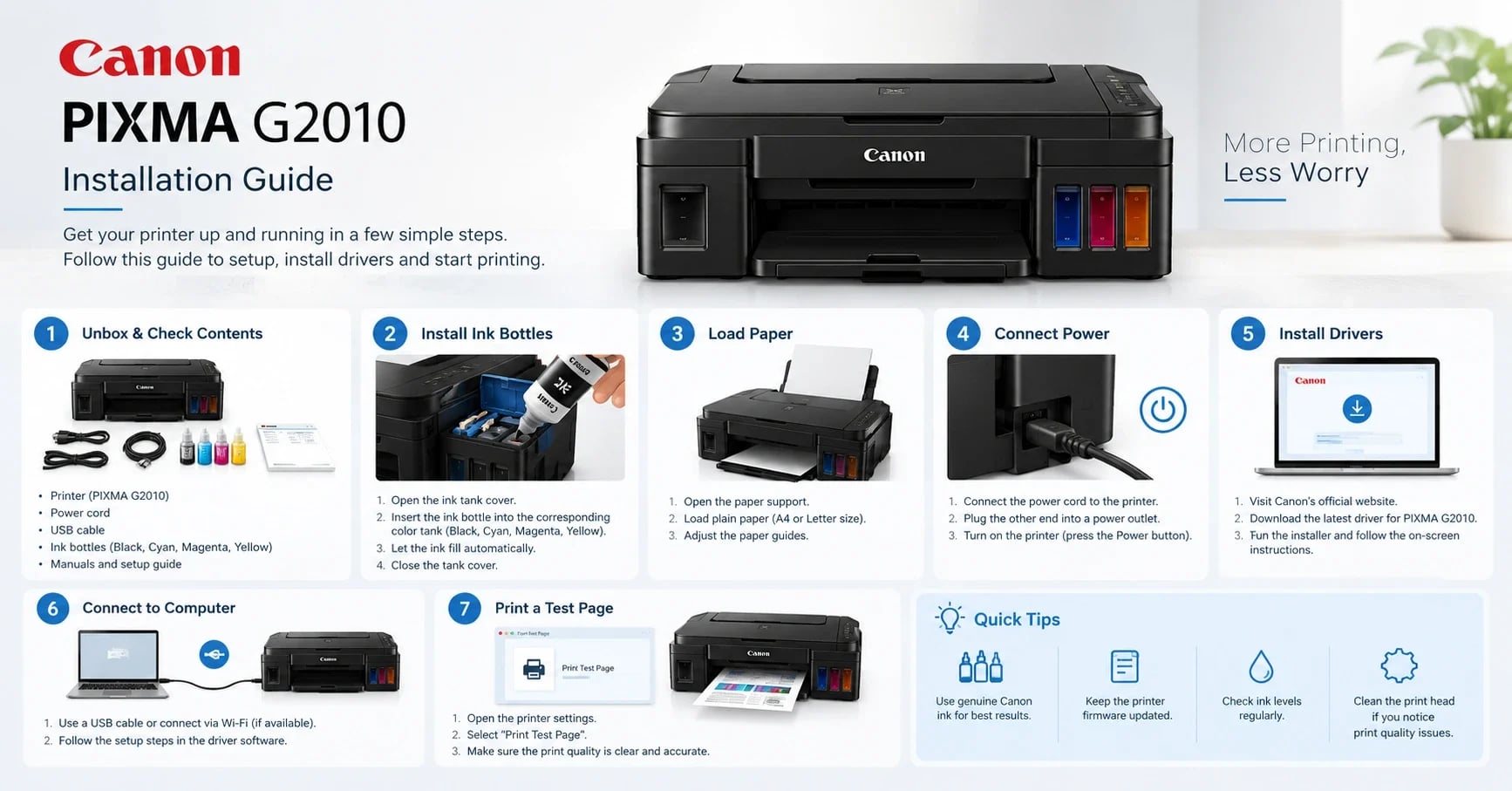
How to Install Canon PIXMA G2010 Driver
Follow these steps to install the printer driver on your Windows computer:
Download the Canon PIXMA G2010 driver from the official Canon website.
Open the downloaded driver installation file.
Follow the on-screen installation instructions.
Accept the software license agreement when prompted.
Connect the printer to your computer when the installer asks you to do so.
Turn on the Canon PIXMA G2010 printer.
Allow the installer to detect and configure the printer.
Complete the driver installation.
Open Settings → Bluetooth & devices → Printers & scanners.
Check that the Canon PIXMA G2010 appears in the printer list.
Print a test page.ex
Canon's installation instructions similarly specify starting the downloaded installer, following the on-screen installation steps, completing the installation, and restarting the computer if prompted.
Canon PIXMA G2010 Printer Setup
After installing the driver, make sure the printer is correctly connected to your computer.
For a USB connection:
Turn on the printer.
Connect the USB cable between the printer and computer.
Wait for Windows to detect the printer.
Open Printers & scanners.
Select the Canon PIXMA G2010.
Open Printer properties.
Print a test page.
Canon PIXMA G2010 Driver Not Working?
If the printer does not print after installing the driver, try these solutions:
Restart the printer and computer.
Check the USB cable and connection.
Try another USB port.
Make sure the printer is powered on.
Remove the existing printer installation.
Reinstall the correct G2010 driver.
Check whether the printer is set as the default printer.
Clear documents stuck in the print queue.
Restart the Windows Print Spooler service.
Make sure the driver matches your Windows version.
Printer Not Detected
Go to:
Settings → Bluetooth & devices → Printers & scanners → Add device
If Windows still cannot detect the printer, check the USB connection and reinstall the G2010 driver.
Driver Installation Failed
If installation fails, remove the previously installed Canon printer software and restart Windows before trying the latest compatible driver again. Canon also recommends removing a previously installed version before installing the latest MP Drivers.
Frequently Asked Questions
Where can I download the Canon PIXMA G2010 driver?
You can download the appropriate driver from Canon's official support website. Always select PIXMA G2010 and your operating system before downloading.
Is the Canon PIXMA G2010 driver free?
Canon provides its MP Drivers for free through its official website.
Why is my Canon G2010 not detected?
Check the USB cable, USB port, printer power, Windows printer settings, and installed driver. Reinstalling the correct G2010 driver may resolve the problem.
Can I use Canon PIXMA G2010 after reinstalling Windows?
Yes. After reinstalling Windows, you may need to reinstall the appropriate Canon PIXMA G2010 driver and configure the printer again.
Conclusion
Installing the correct Canon PIXMA G2010 driver allows your Windows computer to communicate properly with the printer. Always verify the exact printer model and Windows version before downloading and installing printer software.
If you experience printer installation, driver, connectivity, or hardware problems, professional printer servicing and IT support can help identify and resolve the issue.
Need Printer Installation or IT Support?
Proud Nepal IT Suppliers Pvt. Ltd. provides printer installation, configuration, maintenance, troubleshooting, computer repair, networking, CCTV, chip-level repair, and IT support services in Kathmandu, Nepal.
Contact Proud Nepal IT Suppliers Pvt. Ltd. for printer driver installation, printer troubleshooting, maintenance, and other IT support services.