In this article
Need to install the Canon G4780 printer driver on your Windows PC? This guide explains how to download and install the official Canon PIXMA G4780 driver for printing and scanning.
Download Canon G4780 Driver
For the safest installation, download the driver directly from Canon's official website.
Download Canon G4780 Driver for Windows
Canon currently provides the G4780 MP Driver Ver. 1.02 for Windows, which supports printing and scanning. The driver supports Windows 11, Windows 10 and several Windows Server versions.
You can also access all available drivers, software and firmware here:
Canon PIXMA G4780 – Drivers, Software & Firmware
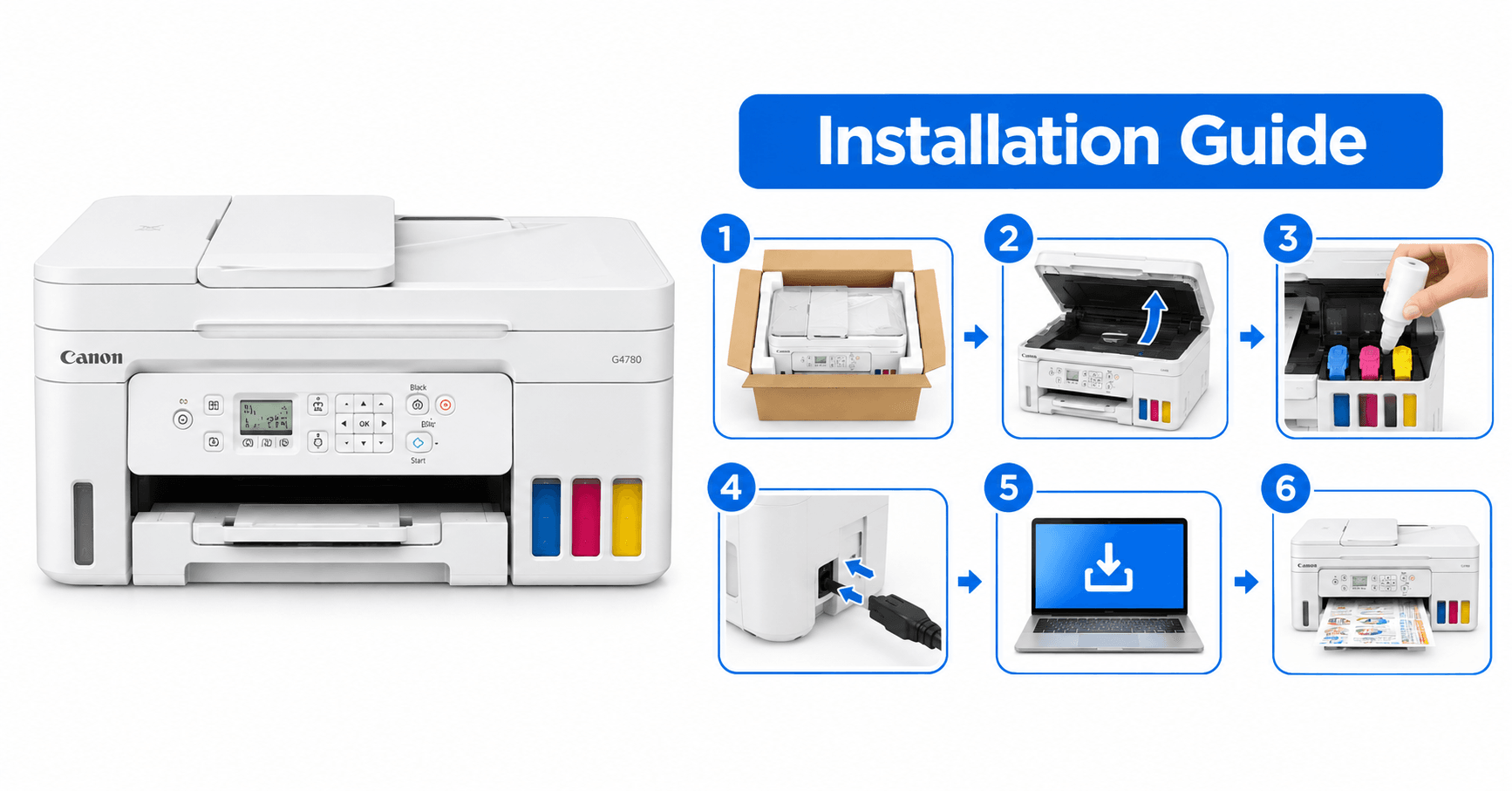
How to Install Canon G4780 Driver
Download the driver from the official Canon link above.
Open the downloaded
.exefile.Follow the on-screen installation instructions.
Select USB or Wi-Fi connection when prompted.
Connect the Canon G4780 when the installer asks you to do so.
Complete the installation.
Go to Windows Settings → Bluetooth & devices → Printers & scanners and check that the Canon G4780 is detected.
Print a test page to confirm the installation.
Canon G4780 Wi-Fi Setup
For wireless printing, connect the Canon G4780 and your computer to the same Wi-Fi network. During driver installation, select the wireless/network connection option and follow the setup instructions.
The G4780 supports wireless printing along with printing, scanning and copying.
Canon G4780 Driver Not Working?
If Windows does not detect the printer:
Restart the printer and computer.
Check the USB or Wi-Fi connection.
Remove an old Canon driver and reinstall the latest version.
Make sure you selected the correct Windows version.
Try the official Canon driver again.
Conclusion
Installing the correct Canon G4780 printer driver ensures reliable printing and scanning on your Windows computer. Always download the driver from Canon's official support website to get the correct and latest version.
Need help with Canon printer installation or troubleshooting?
Proud Nepal IT Suppliers Pvt. Ltd. provides printer installation, configuration, maintenance and IT support services in Kathmandu, Nepal.